Skip to content

Tape Reader

User Guide


Welcome to the comprehensive user guide for Tape Reader, a powerful NinjaTrader indicator designed to enhance your trading experience by providing real-time time and sales (tape) data, sweep detection, large trade highlighting, and visual overlays on your charts. This guide will walk you through installation, configuration, usage, and advanced features to help you make the most of this tool.
Tape Reader  is ideal for day traders, scalpers, and anyone analyzing order flow in futures, stocks, or other instruments supported by NinjaTrader. It aggregates trades, detects aggressive buying/selling (sweeps), highlights large volumes, and offers customizable visuals like rectangles and bubbles on the chart.

Introduction

Tape Reader transforms raw trade data into actionable insights:

  • Time and Sales Tape: Displays recent trades with time, price, volume, and highlights for sweeps/large trades.
  • Sweep Detection: Identifies rapid trades across multiple price levels (e.g., aggressive buying/selling).
  • Large Trade Markers: Highlights trades exceeding a volume threshold with bubbles on the chart.
  • Chart Overlays: Rectangles for sweeps and bubbles for large trades, with popups for details.
  • Audio Alerts: Custom sounds for sweeps and large trades.
  • Customization: Extensive options for colors, sizes, opacities, and behaviors.

This indicator works on real-time data (State.Realtime) and requires tick-level data for accuracy. It's overlay-based, so it draws directly on your price chart.


System Requirements

  • NinjaTrader 8 (latest version recommended).
  • A data provider that supports tick-level data (e.g., Kinetick, CQG, or Rithmic).
  • Windows OS (as NinjaTrader is Windows-based).
  • Minimum: 8GB RAM, modern CPU for smooth performance with high-volume instruments.

Installation

  1. Download the Indicator: Obtain the TapeReader.cs file or compiled DLL from your purchase/download link.
  2. Import into NinjaTrader:
    • Open NinjaTrader.
    • Go to Tools > Import > NinjaScript Add-On.
    • Select the file and follow the prompts.
    • Restart NinjaTrader if prompted.
  3. Verify Installation:
    • Open a chart.
    • Right-click > Indicators.
    • Look for "●⬤【 Tape Reader 】⬤●" under the "FlowMatriX" folder in the indicator list.
    • If it doesn't appear, check the NinjaTrader logs for errors (Help > Mail to Platform Support).

Important: After import, Tape Reader will appear in the "FlowMatriX" category in the Indicators window, not in the main list.


Adding the Indicator to a Chart

  1. Open a chart for your instrument (e.g., ES futures on a 1-minute chart).
  2. Right-click the chart > Indicators.
  3. Expand the "FlowMatriX" folder.
  4. Select "●⬤【 Tape Reader 】⬤●".
  5. Configure parameters as needed (see below).
  6. Click OK to apply. The tape will appear in the top-left of the chart panel by default.
  7. For best results, use on charts with tick data enabled (Chart Properties > Data Series > Load data based on: Tick).

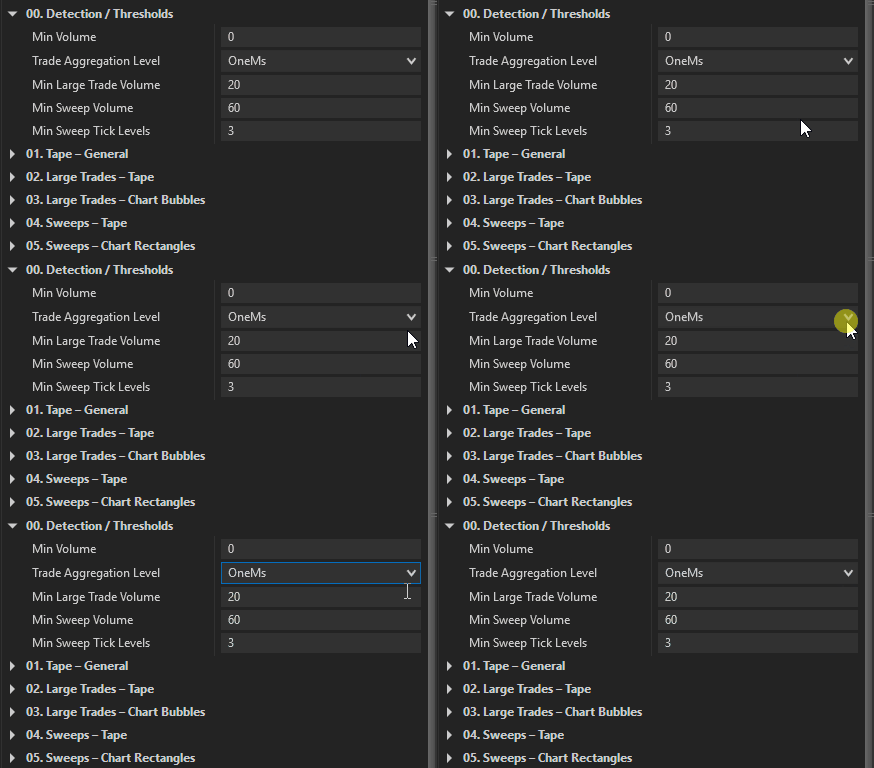
00. Aggregation

2025-10-28_13h35_01

These settings control how trades are grouped and filtered for display, balancing latency and noise reduction.

  • Min Volume (Default: 0): Minimum trade volume (contracts/shares) to include. Set higher to filter small trades. Range: 0 to max double.
  • Trade Aggregation Level (Default: OneMs): Time window for grouping trades. Options: None (instant, no sweeps), 1ms, 10ms, 50ms, 100ms, 500ms, 1s. Higher values reduce noise but add latency.
  • Auto-adjust Flush Window (Default: True): Automatically sets display delay to aggregation level + 10ms. Turn off for manual control (ignored if aggregation is None).
  • Manual Flush Window (ms) (Default: 10): Custom delay (ms) when Auto-adjust is off. Must be ≥ aggregation level. Range: 10-10000.

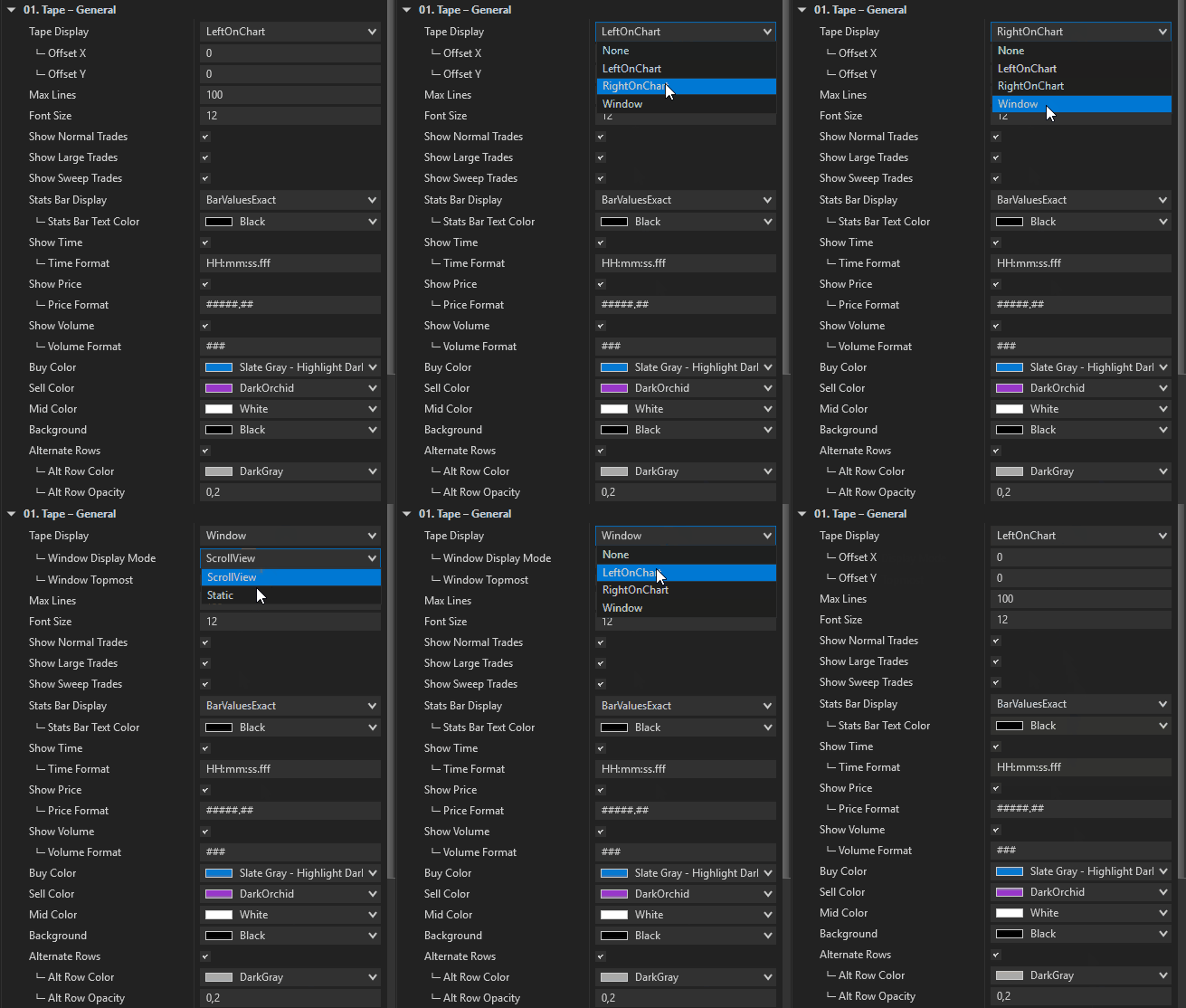
01. Tape - General

2025-10-28_13h44_10

Core settings for the time and sales tape display.

  • Show Tape (Default: True): Enables the tape panel. Turn off to hide all tape visuals.
  • Max Lines (Default: 100): Maximum historical lines shown. Higher values may impact performance. Range: 100-500.
  • Show Time (Default: True): Displays trade timestamps.
  • └─ Time Format (Default: "HH:mm:ss.fff"): Custom format (e.g., "HH:mm:ss" for seconds only).
  • Show Price (Default: True): Displays trade prices.
  • Show Volume (Default: True): Displays trade volumes.
  • └─ Volume Width (Default: 3): Column width multiplier (font size-based). Range: 1-50.
  • Font Size (Default: 12): Tape text size. Range: 6-30.
  • Buy Color (Default: LimeGreen): Color for buy trades.
  • Sell Color (Default: Red): Color for sell trades.
  • Mid Color (Default: White): Color for mid-price trades.
  • Background (Default: Black): Tape background color.
  • Alternate Rows (Default: True): Alternates row backgrounds for readability.
  • └─ Alt Row Color (Default: DarkGray): Alternate row color.
  • └─ Alt Row Opacity (Default: 0.2): Opacity (0-1).

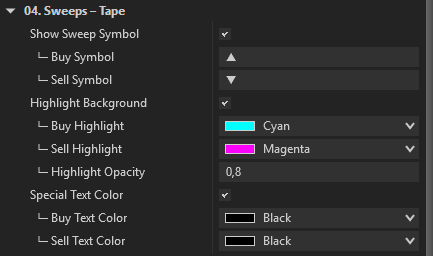
02. Tape - Sweeps

2025-10-28_13h51_40

Settings for detecting and highlighting sweeps (rapid trades across levels).

  • Min Tick Levels (Default: 4): Minimum ticks spanned for a sweep. Range: 2+.
  • Min Sweep Volume (Default: 20): Minimum total volume for a sweep.
  • Show Sweep Symbol (Default: True): Shows symbols next to sweeps.
  • └─ Buy Symbol (Default: "▲"): Buy sweep symbol.
  • └─ Sell Symbol (Default: "▼"): Sell sweep symbol.
  • Highlight Background (Default: True): Highlights sweep rows.
  • └─ Buy Highlight (Default: Cyan): Buy sweep background.
  • └─ Sell Highlight (Default: Magenta): Sell sweep background.
  • └─ Highlight Opacity (Default: 0.8): Opacity (0-1).
  • Special Text Color (Default: True): Custom text color for sweeps.
  • └─ Buy Text Color (Default: Black): Buy sweep text.
  • └─ Sell Text Color (Default: Black): Sell sweep text.

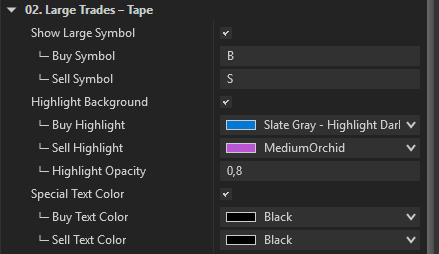
03. Tape - Large Trades

2025-10-28_13h56_30

Settings for highlighting high-volume trades.

  • Min Large Volume (Default: 20): Threshold for large trades.
  • Show Large Symbol (Default: True): Shows symbols next to large trades.
  • └─ Buy Symbol (Default: "B"): Buy large symbol.
  • └─ Sell Symbol (Default: "S"): Sell large symbol.
  • Highlight Background (Default: True): Highlights large trade rows.
  • └─ Buy Highlight (Default: LimeGreen): Buy large background.
  • └─ Sell Highlight (Default: Red): Sell large background.
  • └─ Highlight Opacity (Default: 0.8): Opacity (0-1).
  • Special Text Color (Default: True): Custom text for large trades.
  • └─ Buy Text Color (Default: Black): Buy large text.
  • └─ Sell Text Color (Default: Black): Sell large text.

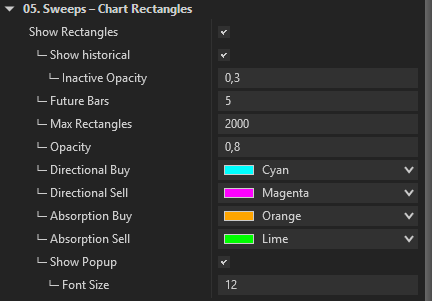
04. Chart - Sweep Rectangles

2025-10-28_14h13_54

Visual overlays for sweeps on the price chart.

  • Show Rectangles (Default: True): Draws rectangles spanning sweep levels.
  • └─ Show Inactive (Default: False): Shows faded historical rectangles.
  • └─ Future Bars (Default: 5): Extends active rectangles forward.
  • └─ Max Rectangles (Default: 2000): Limits historical rectangles.
  • └─ Opacity (Default: 0.5): Rectangle opacity (0.1-1).
  • └─ Directional Buy (Default: LimeGreen): Color for directional buy sweeps (price moves with trade).
  • └─ Directional Sell (Default: Red): Color for directional sell sweeps.
  • └─ Absorption Buy (Default: Magenta): Color for absorption buy sweeps (price resists trade).
  • └─ Absorption Sell (Default: Cyan): Color for absorption sell sweeps.
  • └─ Show Popup (Default: True): Hover popup with details (type, levels, volume).
  •    ● Font Size (Default: 12): Popup text size. Range: 8-30.

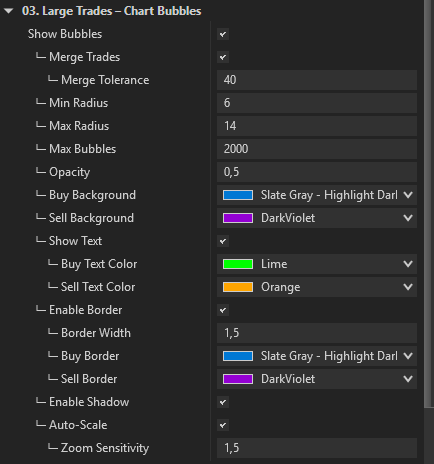
05. Chart - Large Trade Bubbles

2025-10-28_14h22_07

Circular markers for large trades on the chart.

  • Show Bubbles (Default: True): Draws bubbles at trade prices.
  • └─ Merge Trades (Default: True): Combines nearby trades.
  •    ● Merge Tolerance (Default: 20): Max ticks for merging.
  • └─ Min Radius (Default: 8): Smallest bubble size. Range: 5-50.
  • └─ Max Radius (Default: 18): Largest bubble size. Range: 5-100.
  • └─ Max Bubbles (Default: 2000): Limits historical bubbles.
  • └─ Opacity (Default: 0.5): Bubble opacity (0.1-1).
  • └─ Buy Background (Default: LimeGreen): Buy bubble fill.
  • └─ Sell Background (Default: Red): Sell bubble fill.
  • └─ Show Text (Default: True): Shows volume inside bubbles.
  •    ● Buy Text Color (Default: White): Buy text.
  •    ● Sell Text Color (Default: White): Sell text.
  • └─ Enable Border (Default: True): Draws bubble borders.
  •    ● Border Width (Default: 1.5): Border thickness (0.5-5).
  •    ● Buy Border (Default: DarkGreen): Buy border color.
  •    ● Sell Border (Default: DarkRed): Sell border color.
  • └─ Enable Shadow (Default: True): Adds shadow effect.
  • └─ Auto-Scale (Default: True): Scales with chart zoom.
  •    ● Zoom Sensitivity (Default: 2.0): Scaling intensity (0.1-5).

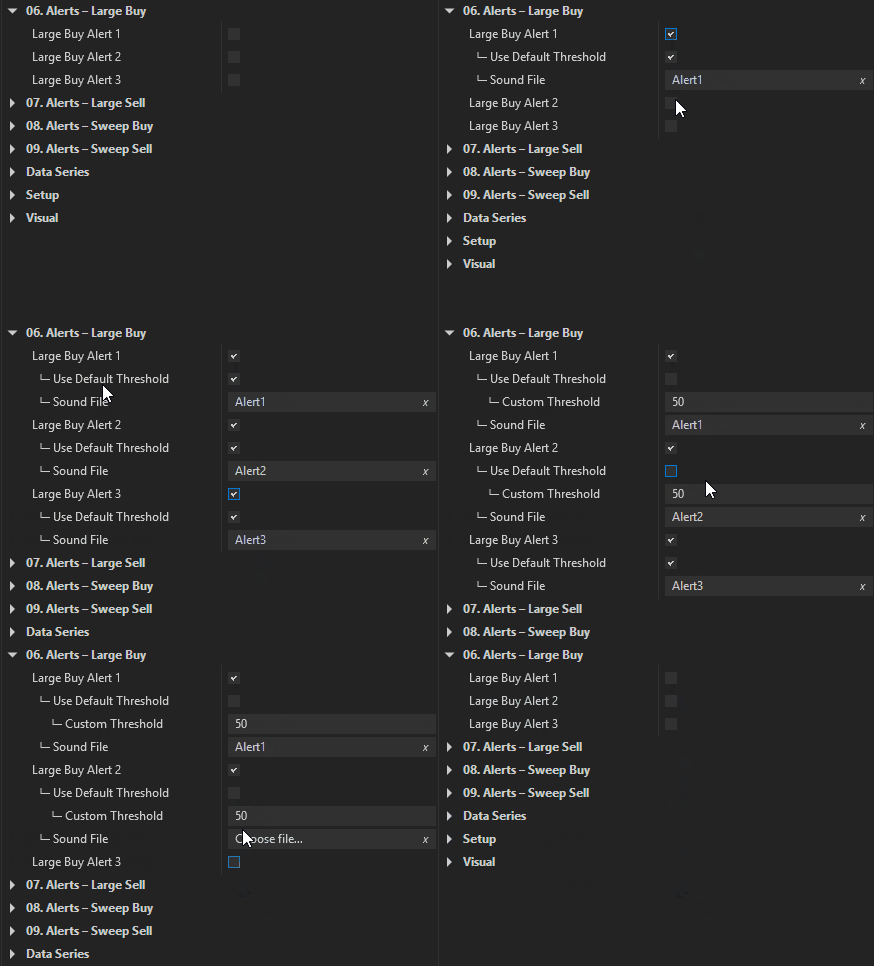
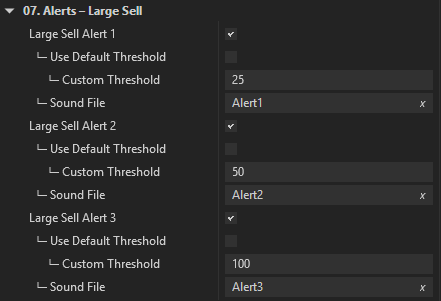
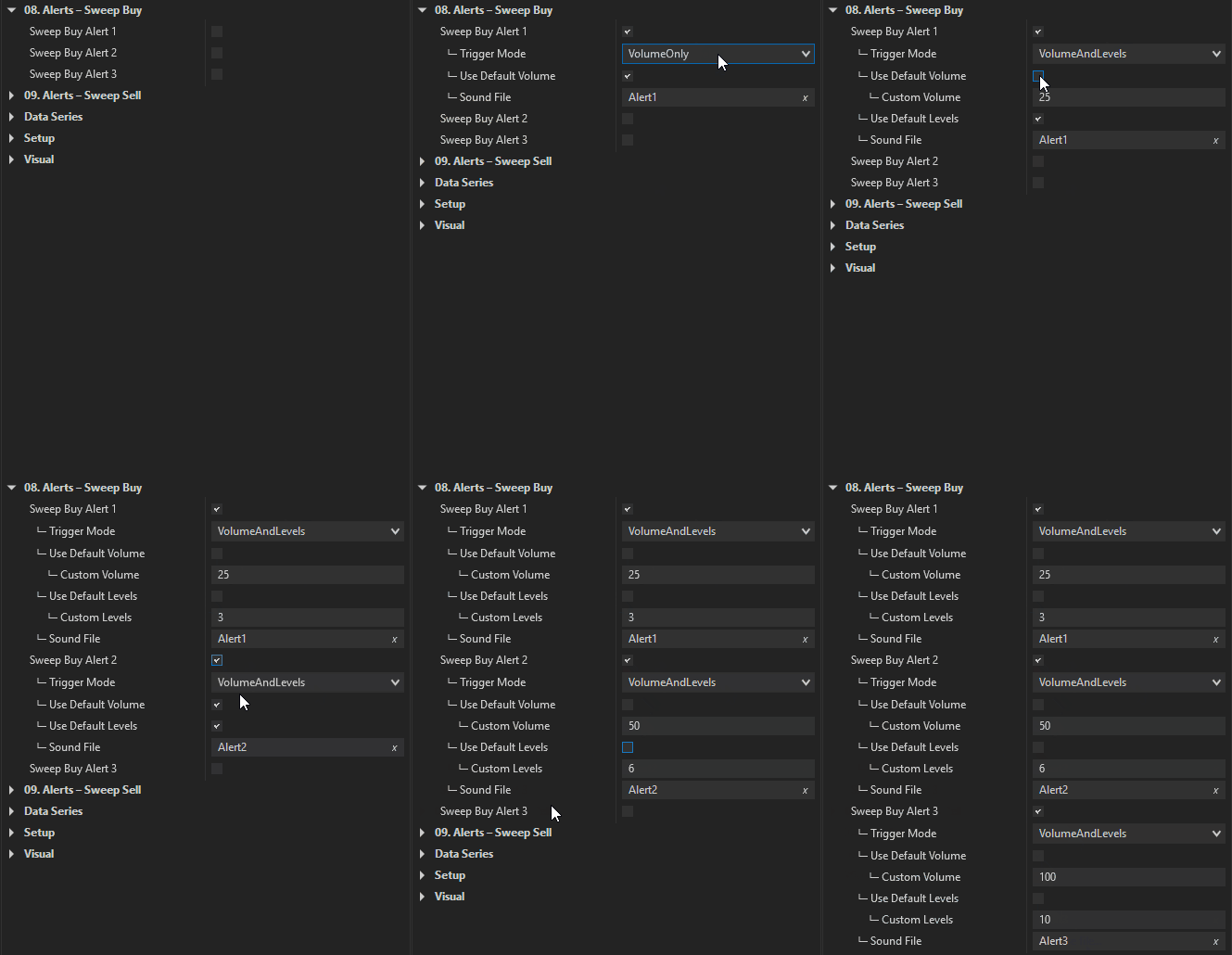
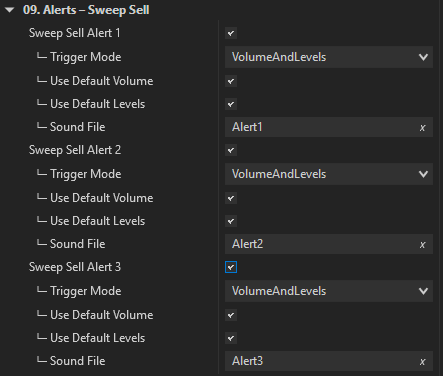
06. Alerts - Sounds

2025-10-28_14h24_58

Audio notifications for key events.

  • Sweep Buy Sound (Default: False): Plays sound on buy sweeps.
  • └─ Sweep Buy File (Default: Alert1.wav): .WAV file path.
  • Sweep Sell Sound (Default: False): Plays on sell sweeps.
  • └─ Sweep Sell File (Default: Alert2.wav): .WAV file.
  • Large Buy Sound (Default: False): Plays on large buys.
  • └─ Large Buy File (Default: Alert3.wav): .WAV file.
  • Large Sell Sound (Default: False): Plays on large sells.

  • └─ Large Sell File (Default: Alert4.wav): .WAV file.

Additional information

Understanding the Display

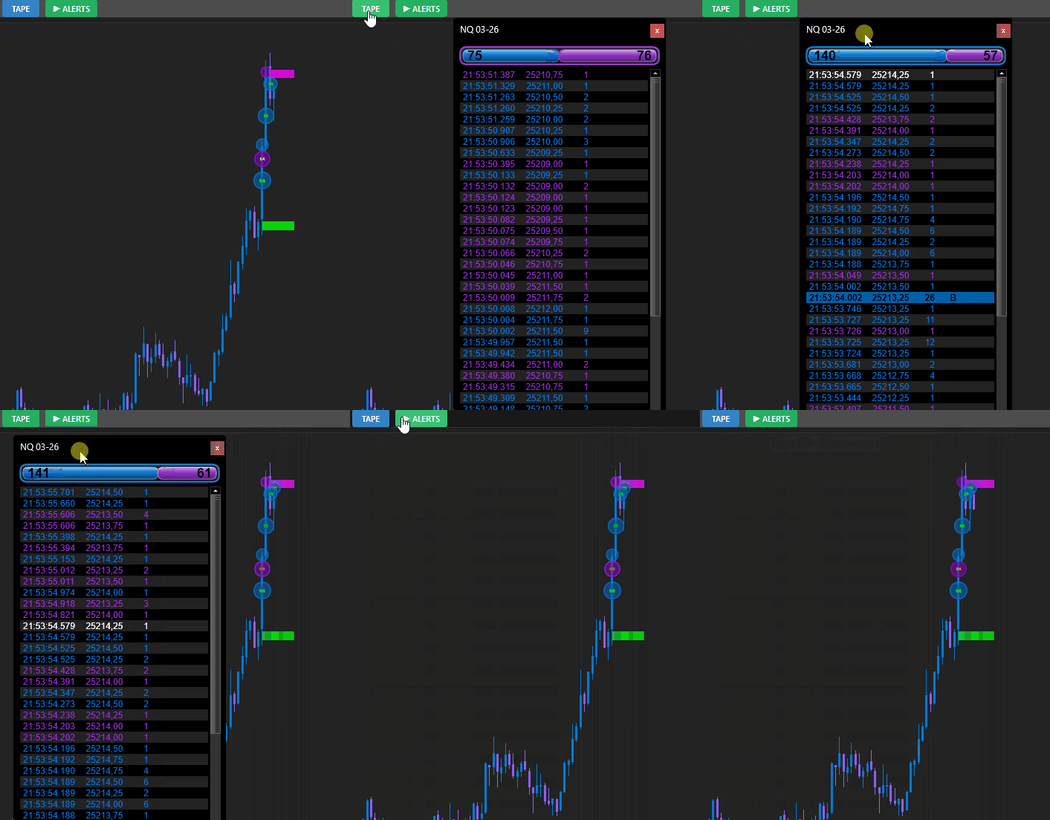
  • Tape Panel: Top-left of chart. Shows recent trades (time/price/volume). Sweeps/large trades have symbols and highlights.
  • Volume Stats Bar: Above tape; gradient bar showing buy/sell/mid volume proportions.
  • Sweep Rectangles: On chart; colored boxes spanning sweep levels. Hover for popup (if enabled).
  • Large Trade Bubbles: Circles on chart at trade prices, sized by volume. Text shows exact volume.

Sweep Behaviors:

  • Directional: Price moves with the trade (e.g., buy sweep pushes price up).
  • Absorption: Price resists (e.g., buy sweep but price doesn't rise).

Advanced Features

  • Popups: Hover over sweep rectangles for details (DIR/ABS type, levels, volume).
  • Sounds: Cooldown prevents spam (1s default). Use custom .WAV files.
  • Merging: For bubbles, combines trades within tolerance to reduce clutter.
  • Inactive Sweeps: View historical rectangles for context.

Performance Tips

  • Lower Max Lines/Max Rectangles/Max Bubbles on high-volume instruments.
  • Use Aggregation > None for sweep detection but expect minor latency.
  • Disable unused features (e.g., sounds/popups) for lighter load.
  • Test on demo accounts first.

Troubleshooting

  • No Tape Visible: Ensure Show Tape is on and real-time data is connected.
  • No Sweeps Detected: Aggregation must be > None; check Min Tick Levels/Volume.
  • Sounds Not Playing: Verify .WAV paths; test in NinjaTrader sound settings.
  • Performance Lag: Reduce max values; close other indicators.
  • Indicator Not Found: Confirm it’s in the "FlowMatriX" folder in the Indicators list.

If issues persist, export your workspace and contact support.


Support and Updates

For questions, feature requests, or bugs, visit our DISCORD. Updates are released periodically—check your download link.

Happy trading with Tape Reader!

Last Updated: November 28, 2025

Collaborative Community

Our users are our best source of inspiration. We actively listen to your feedback and integrate your suggestions into our future developments.